All your email accounts in one free app
A free email client for Windows. No limits, no subscription. Your mail stays on your PC.
Free and open source (MIT) · Windows 10 and 11, 64-bit · about 100 MB
Not sure it is safe? See how to install. If the download does not start, open the download page.
New in 0.6.4 Open .eml files, a Delete button on notifications, snooze and one-click unsubscribe. See what changed
Why Letterdock
No limit on accounts
Add 2 accounts or 20. Many other apps stop at one or two unless you pay. Letterdock never asks.
Private by design
Your mail is saved on your own PC. There are no Letterdock servers, no accounts with us, and no tracking.
Open source
Anyone can read the code and check what it does. It is free under the MIT license, today and later.
No ads. No upsell. No sign-up.
What you get
Everything you need for daily email, and nothing you do not. Features with a + open to show a picture.
One inbox for everythingAll your accounts in one list.
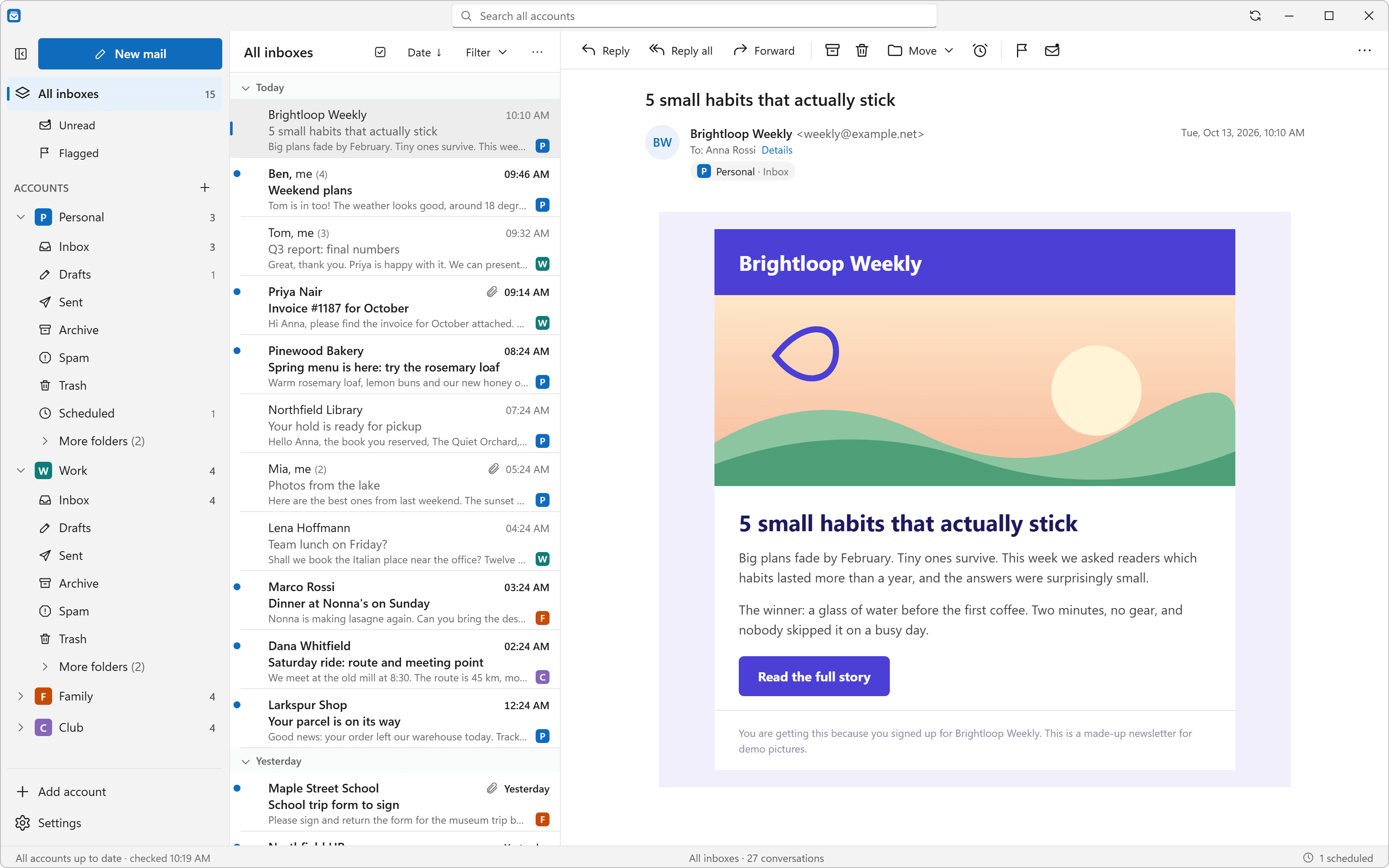
See mail from all your accounts in one list. Small colored badges show which account each message is from.
ConversationsReplies grouped into one tidy thread.
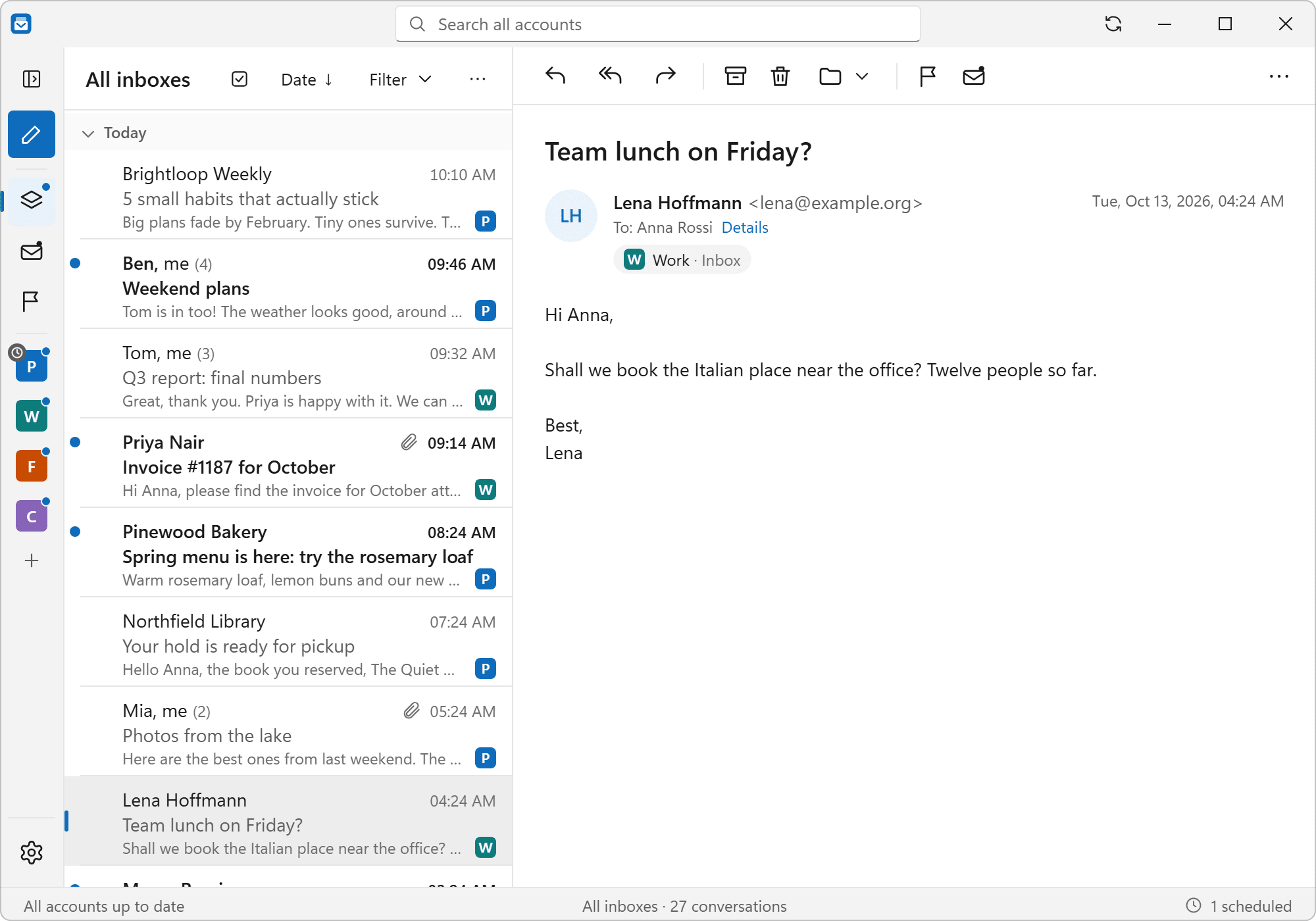
Replies are grouped into one thread, even when they are in different folders.
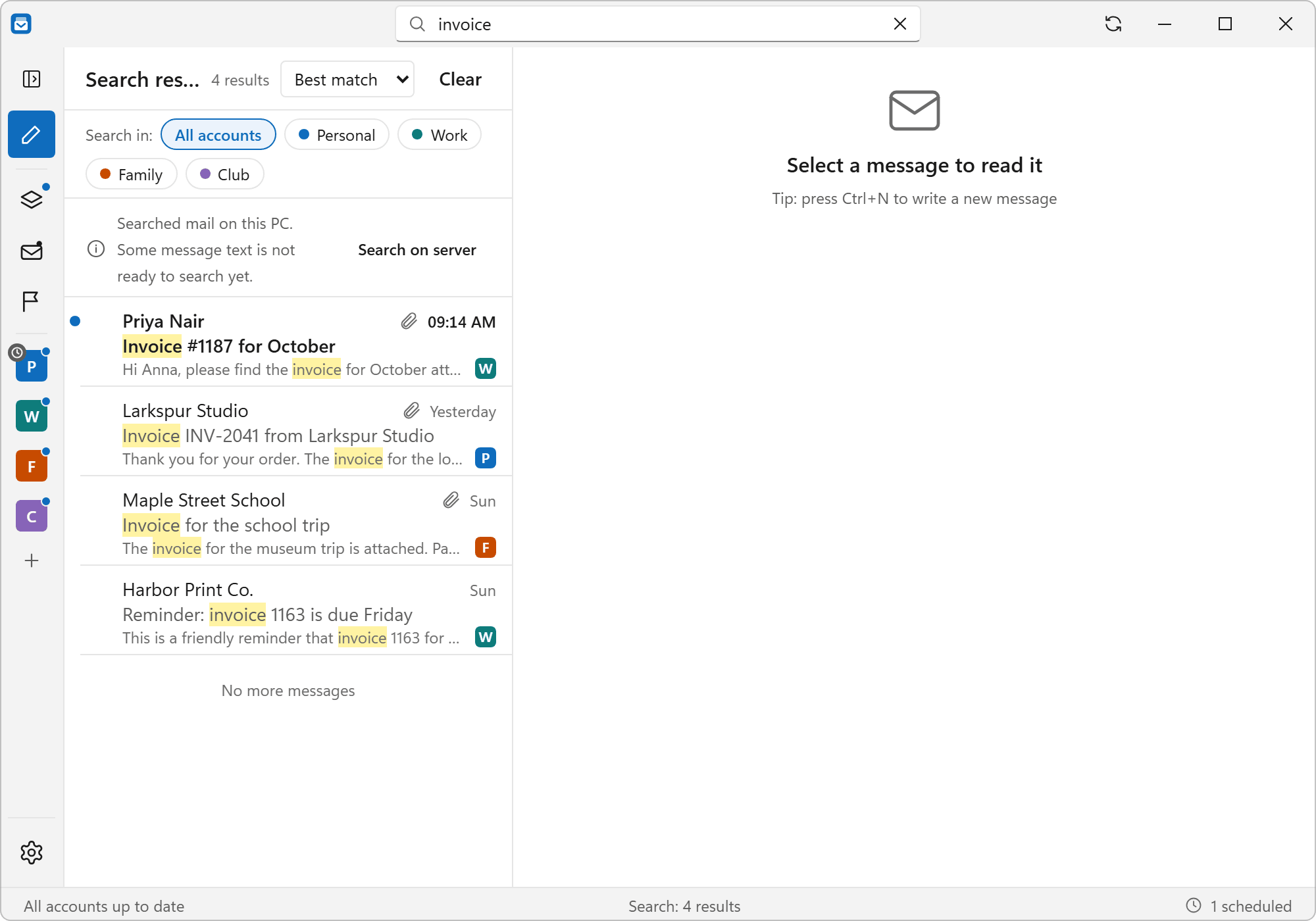
Search across accountsOne search box for every account. Fast, even with 50,000 emails.
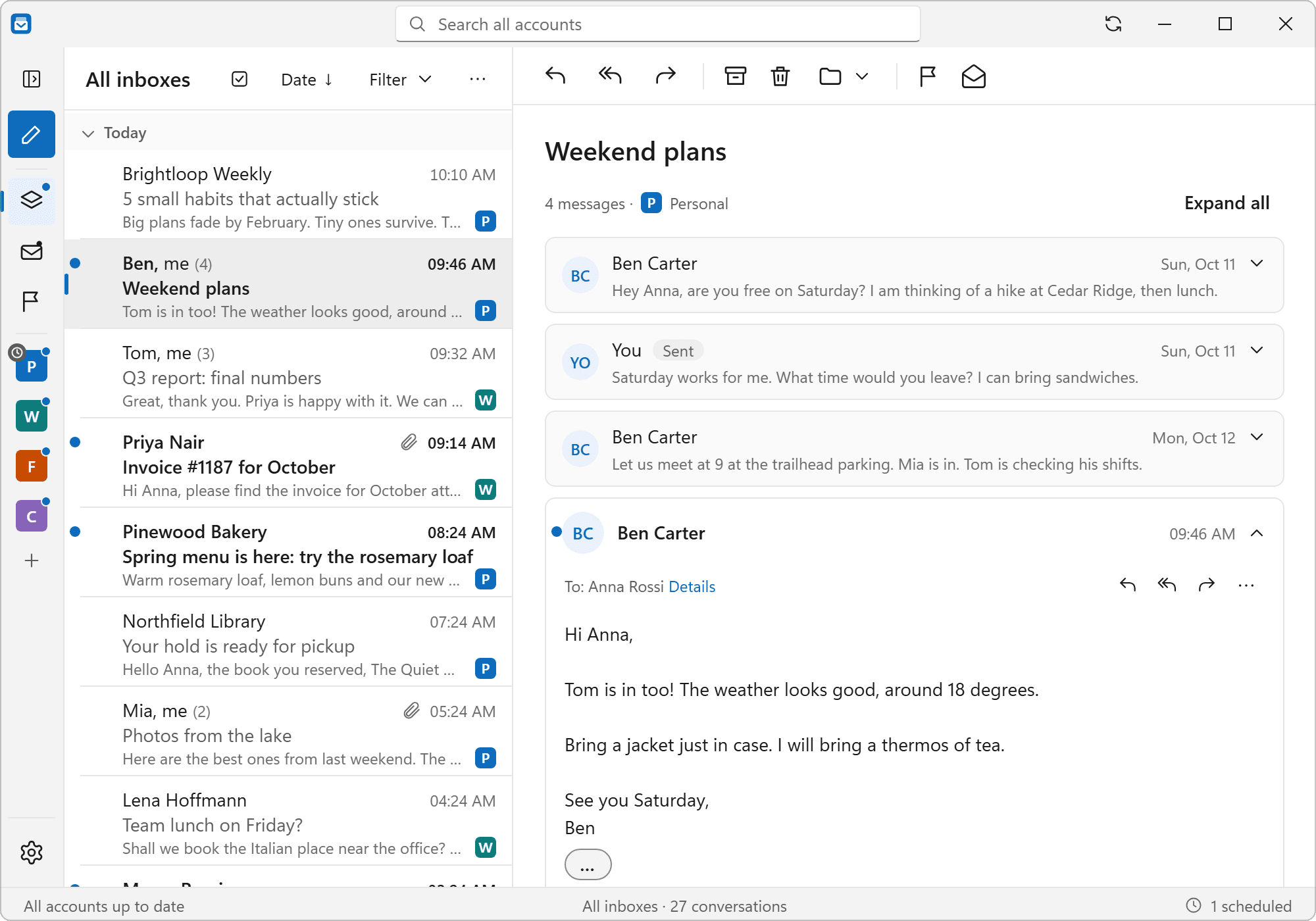
One search box looks through every account at once. It stays quick on very large mailboxes. We tested with 50,000 emails.
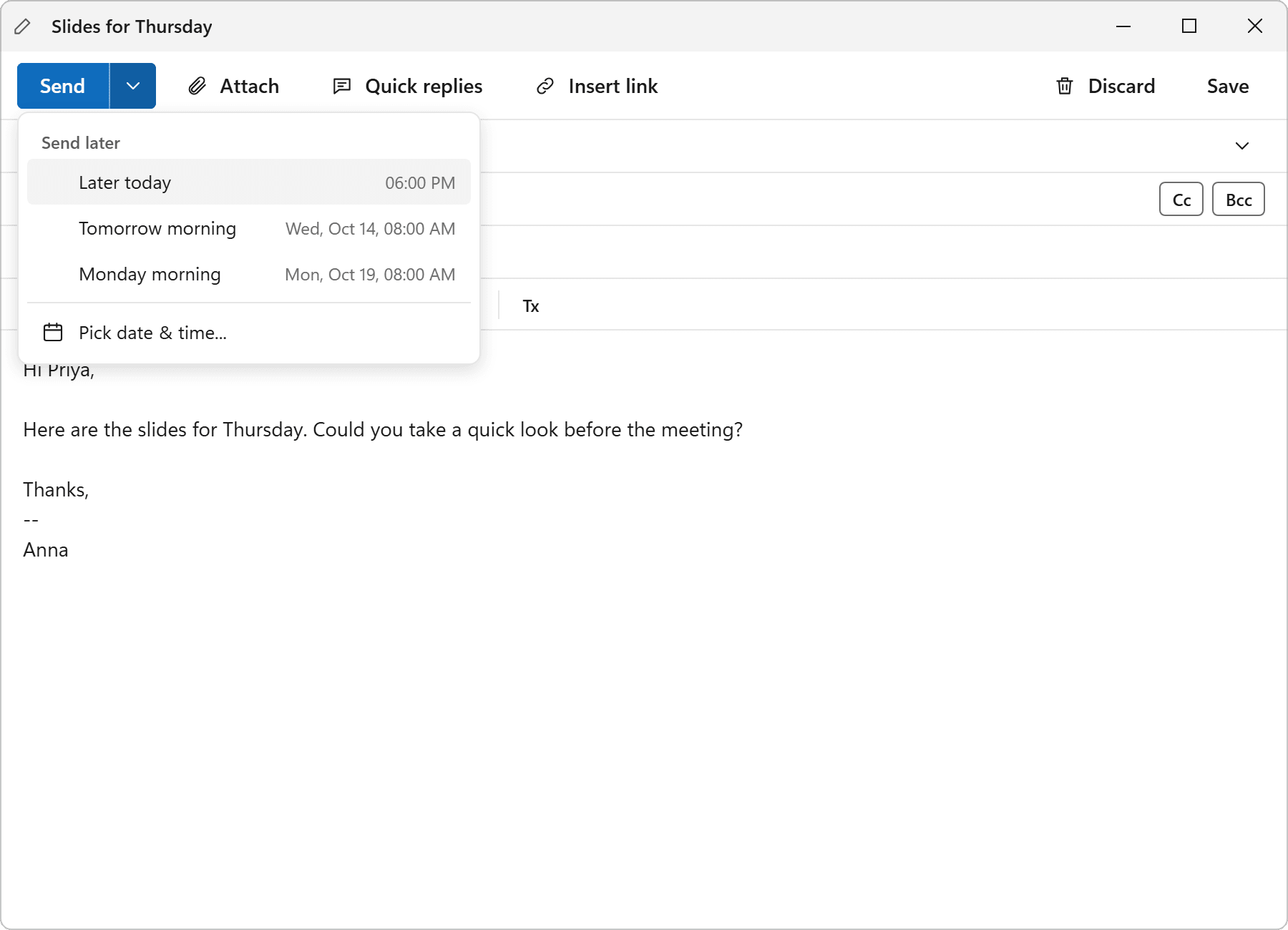
Send laterWrite now, pick a time, and it goes out then.
Letterdock sends it for you. Your PC must be on and the app running at that time.
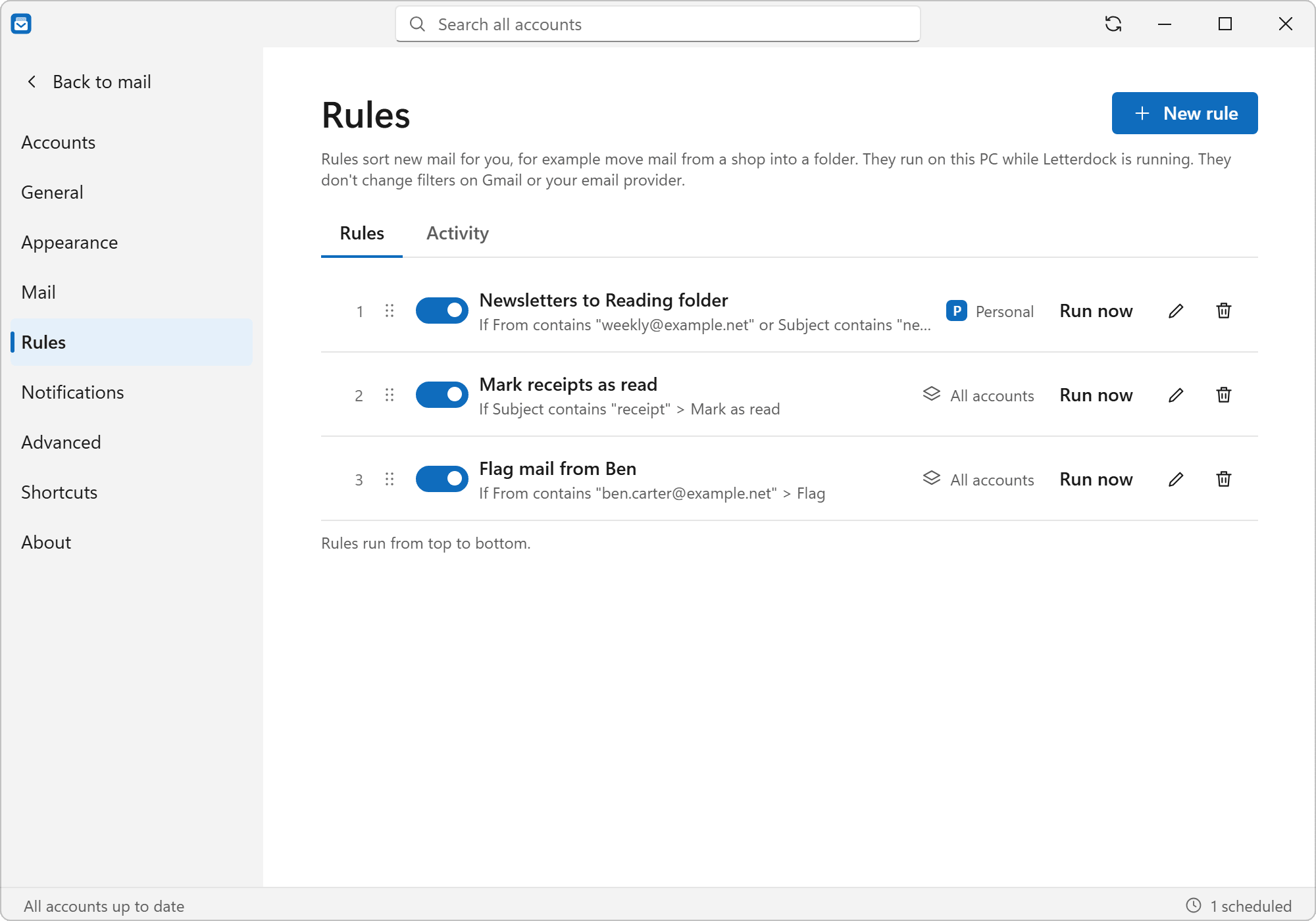
RulesMove, flag or mark mail as read for you.
For example, send all newsletters to one folder.
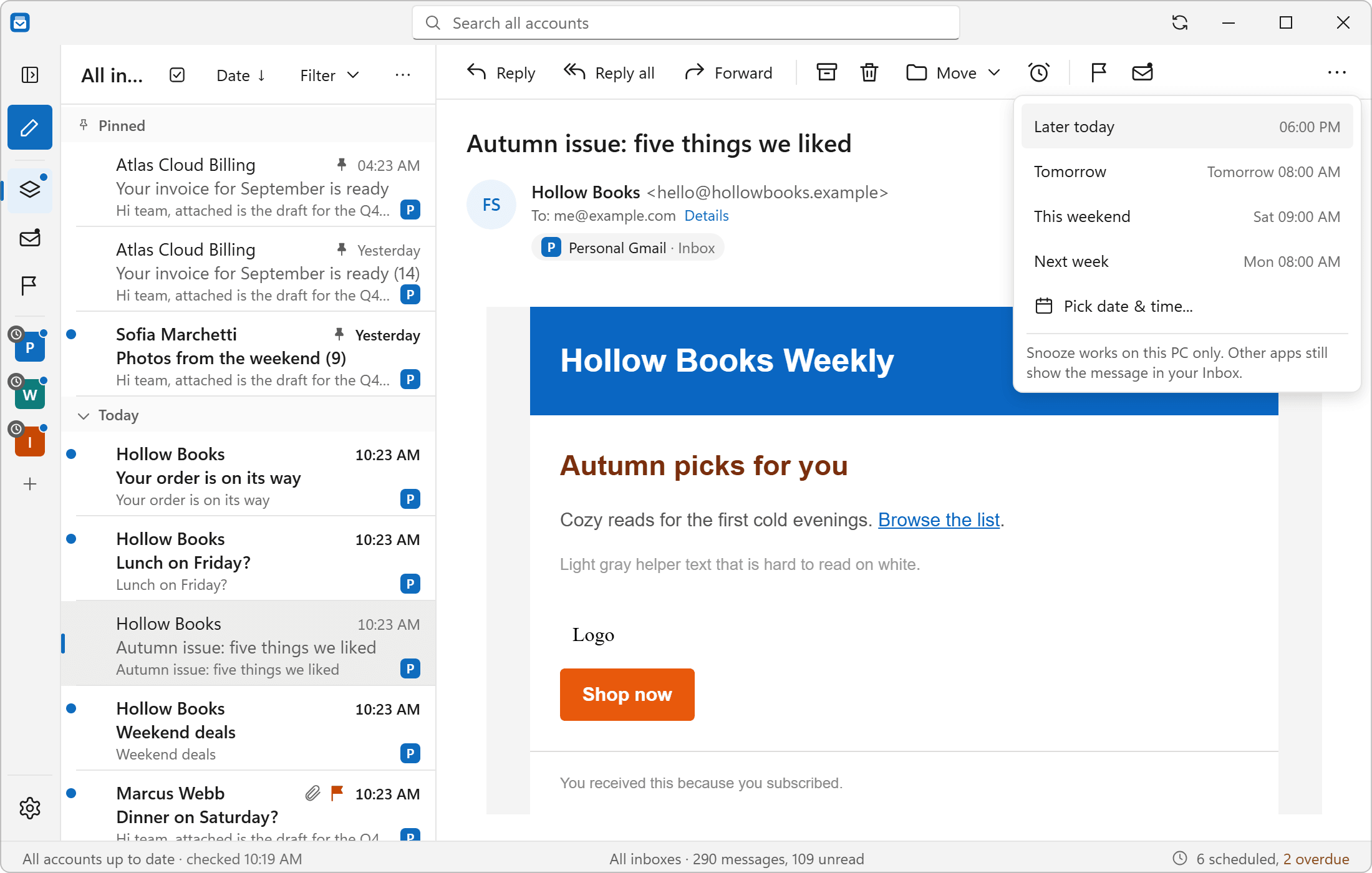
SnoozeHide a message until later. It comes back on top.
Pick a time, like tomorrow morning. The message goes away and comes back unread, at the top of your inbox. Snooze works on this PC only. Other apps still show the message in your inbox. If Letterdock was closed, the message comes back when you open it.
One-click unsubscribeLeave a mailing list with one click.
Letterdock shows an Unsubscribe button on mailing-list mail, but only when it can check that the sender is real. It never unsubscribes by itself. It asks you first when it needs to send an email or open a web page.
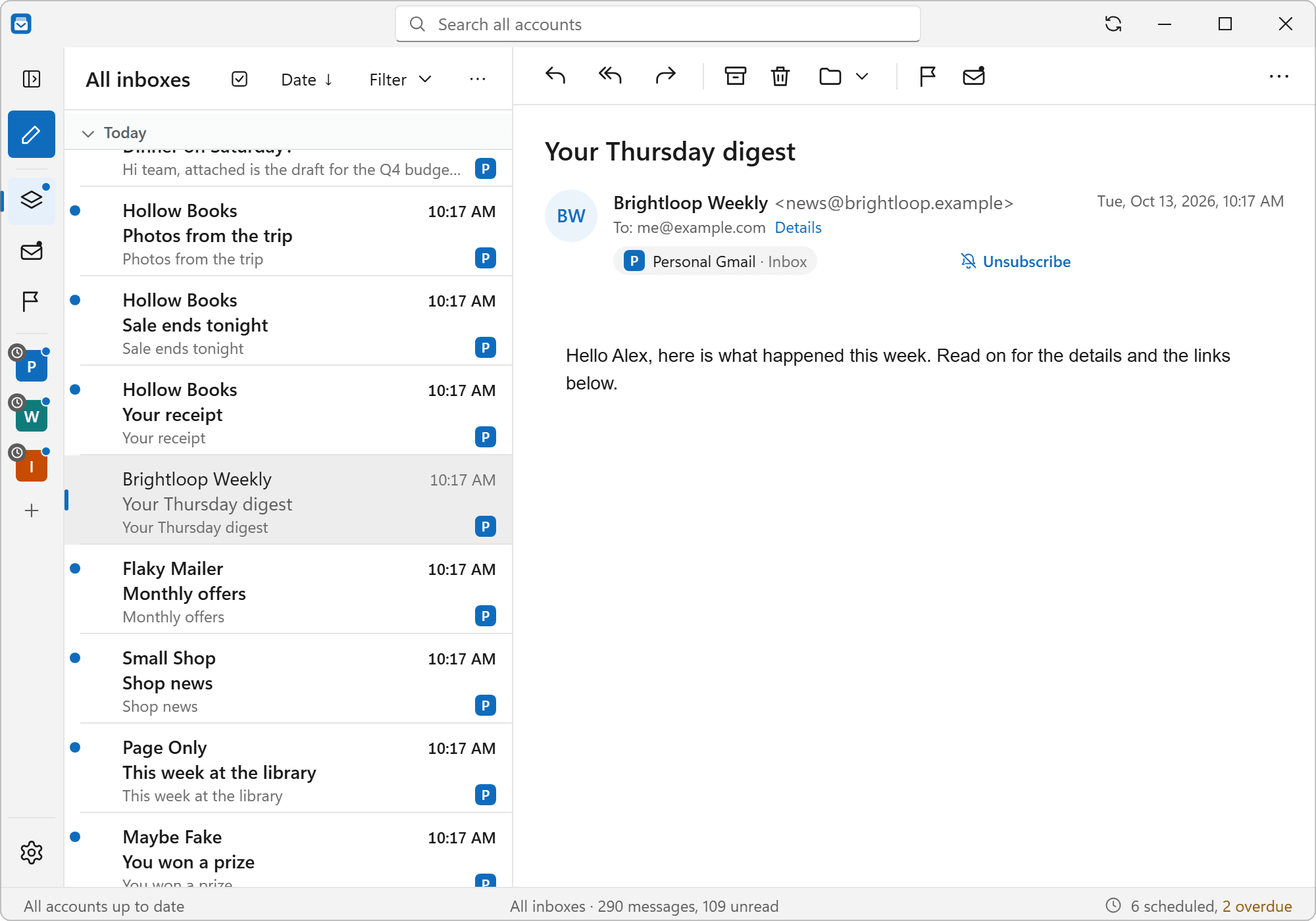
Quick repliesAdd text you often write with two clicks.
Save sentences you use a lot, like a thank-you or a meeting reply. Add one from the Quick replies button when you write a message.
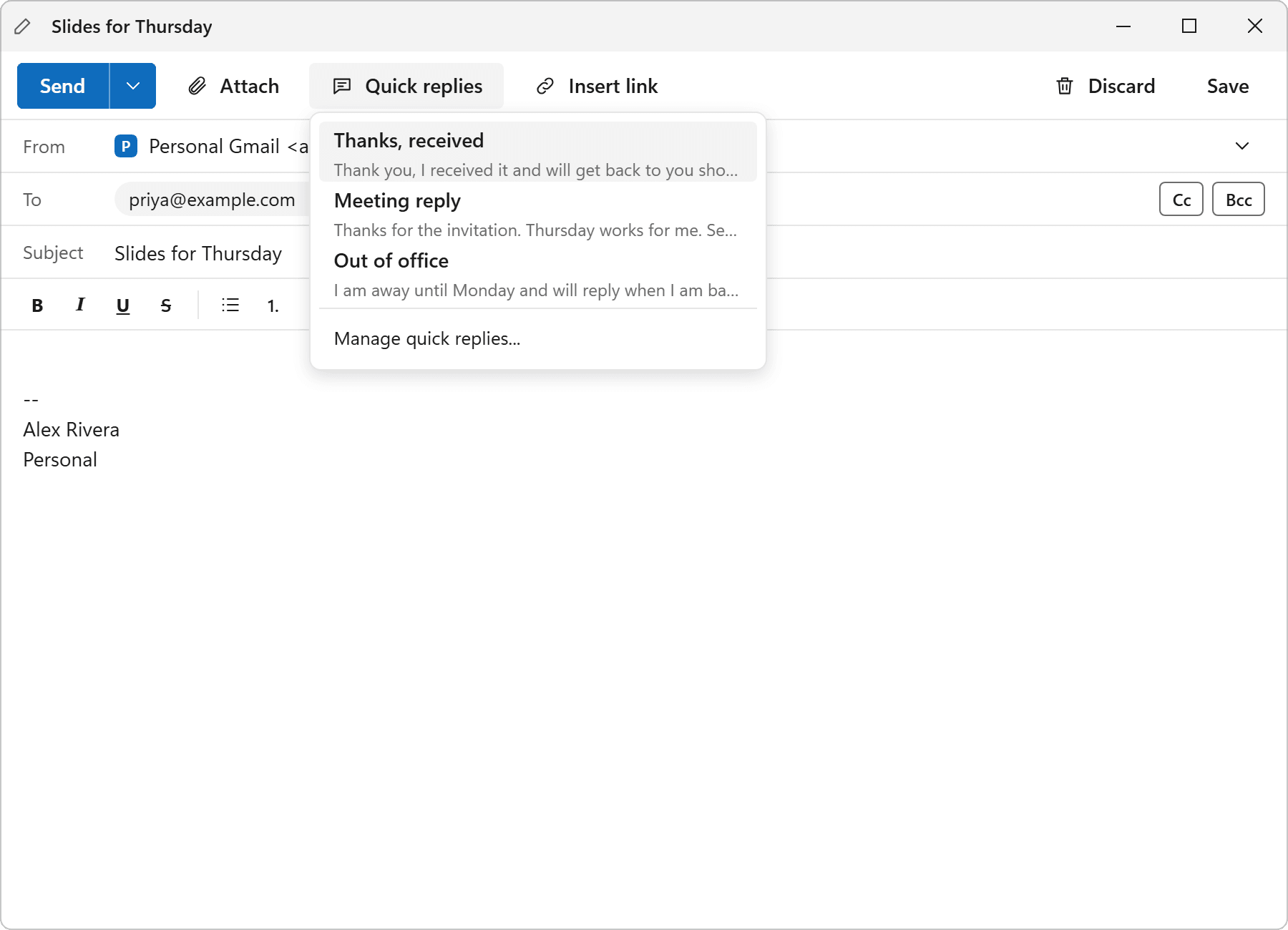
Works offlineRead and search saved mail with no internet.
Replies you write wait in the outbox and go out when you are back online.
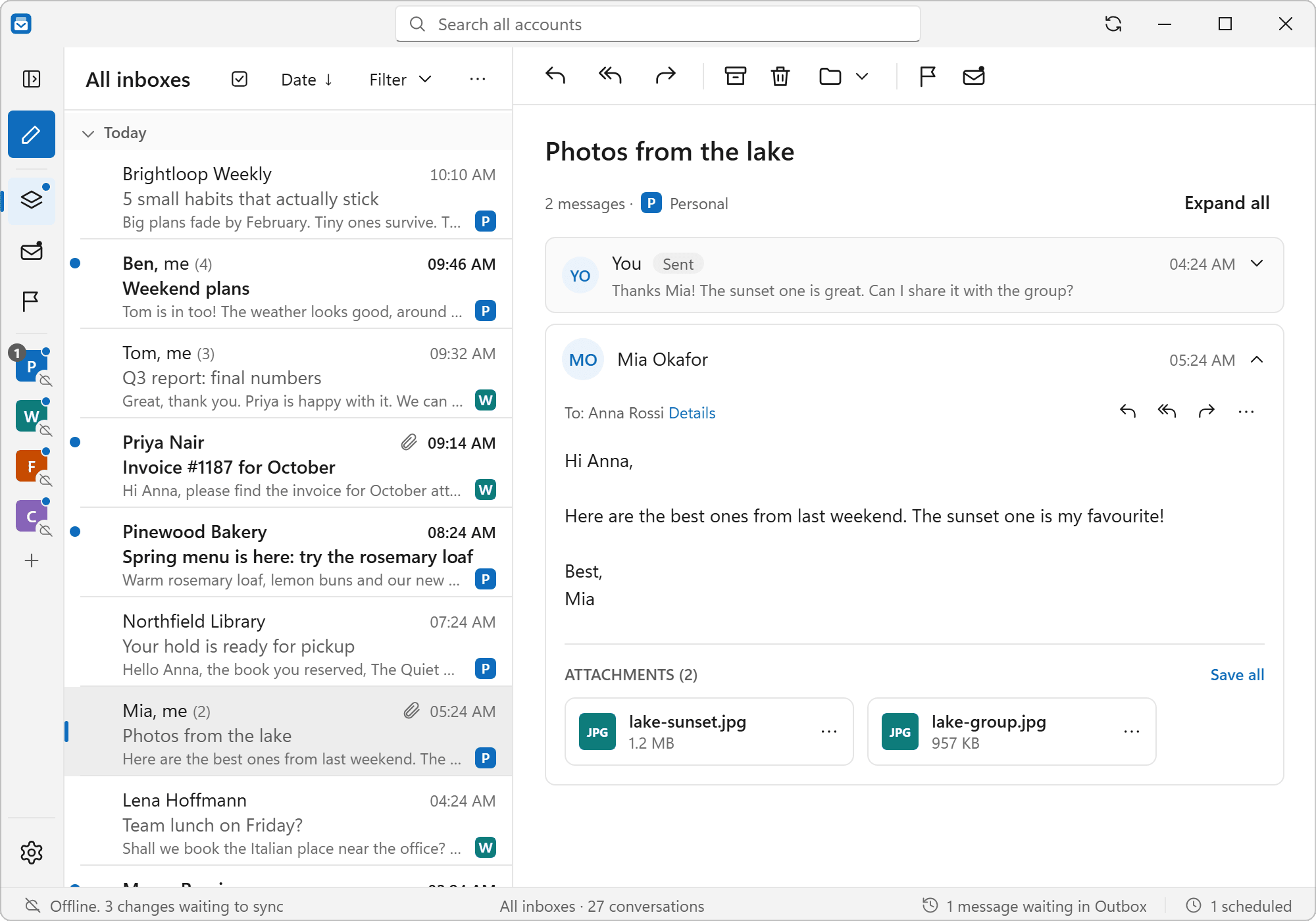
Dark mode for emailsBright emails turn dark. You can turn it off per message.
Even bright white emails turn dark, so your eyes stay comfortable at night. If the colors look wrong, turn it off for that message.
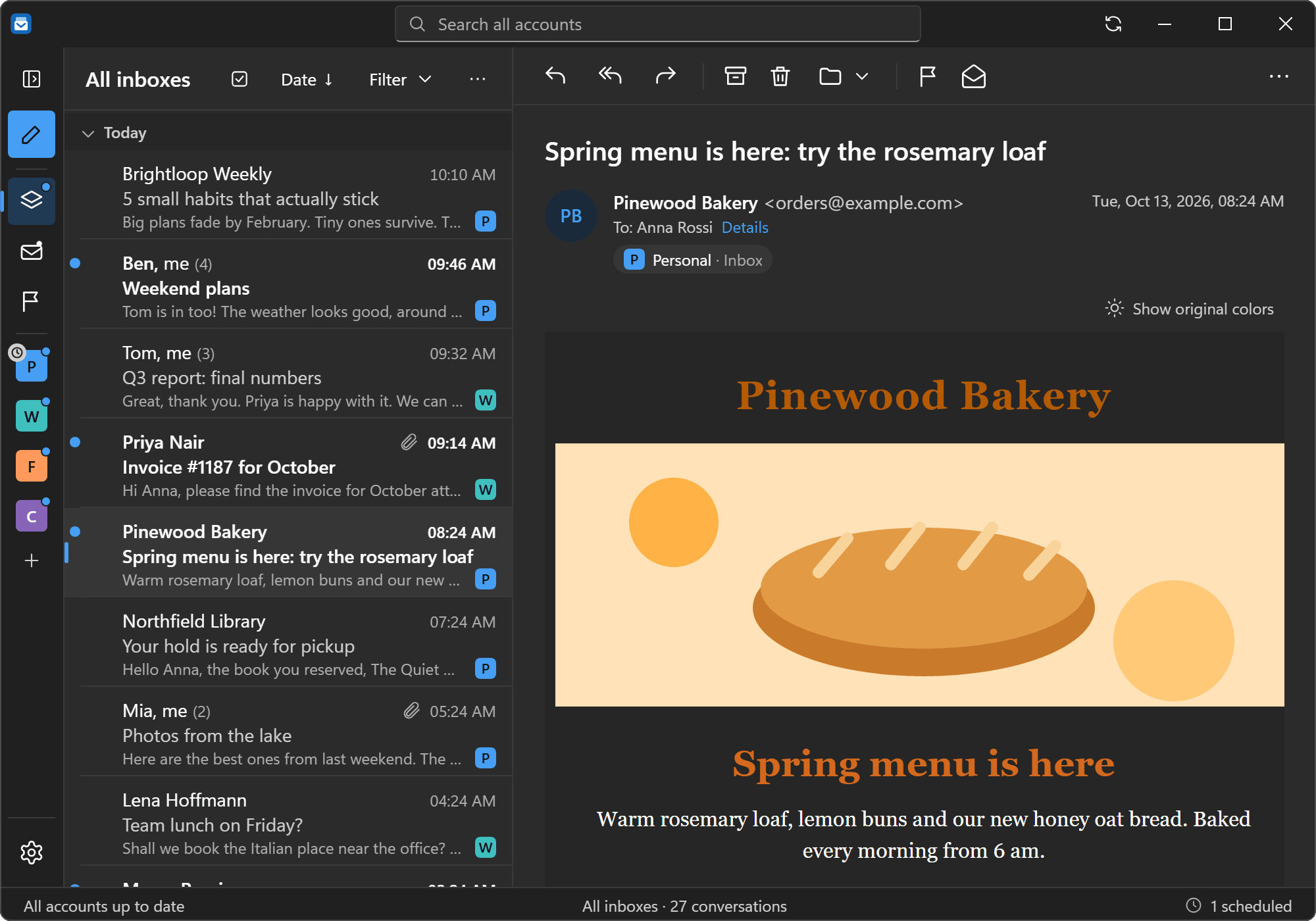
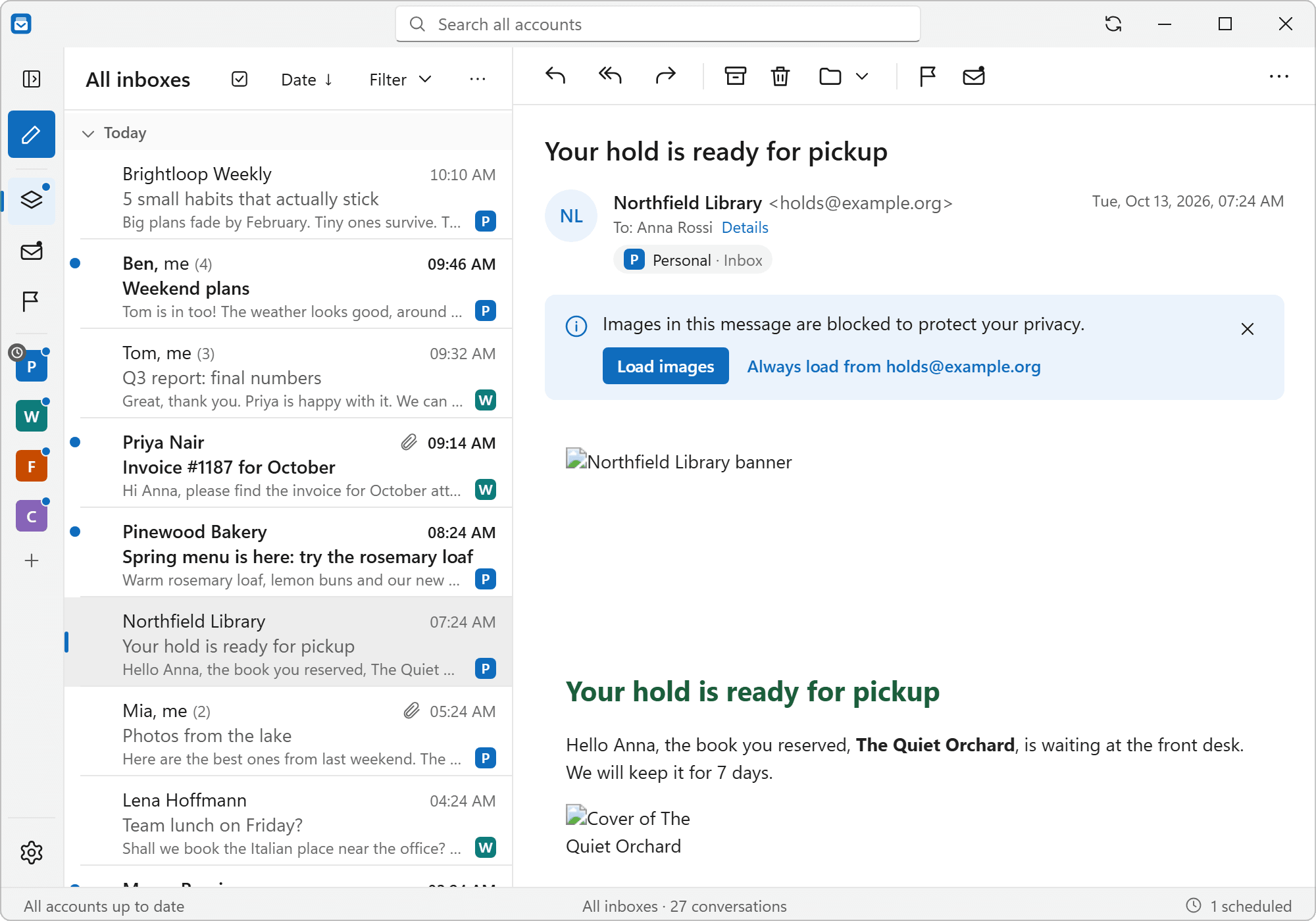
Image privacyPictures stay blocked until you allow them.
This stops senders from seeing when you open a message. Letterdock also tells you when a message has known tracking pictures, and it keeps those blocked. Allowed pictures are saved on your PC so they load fast later.
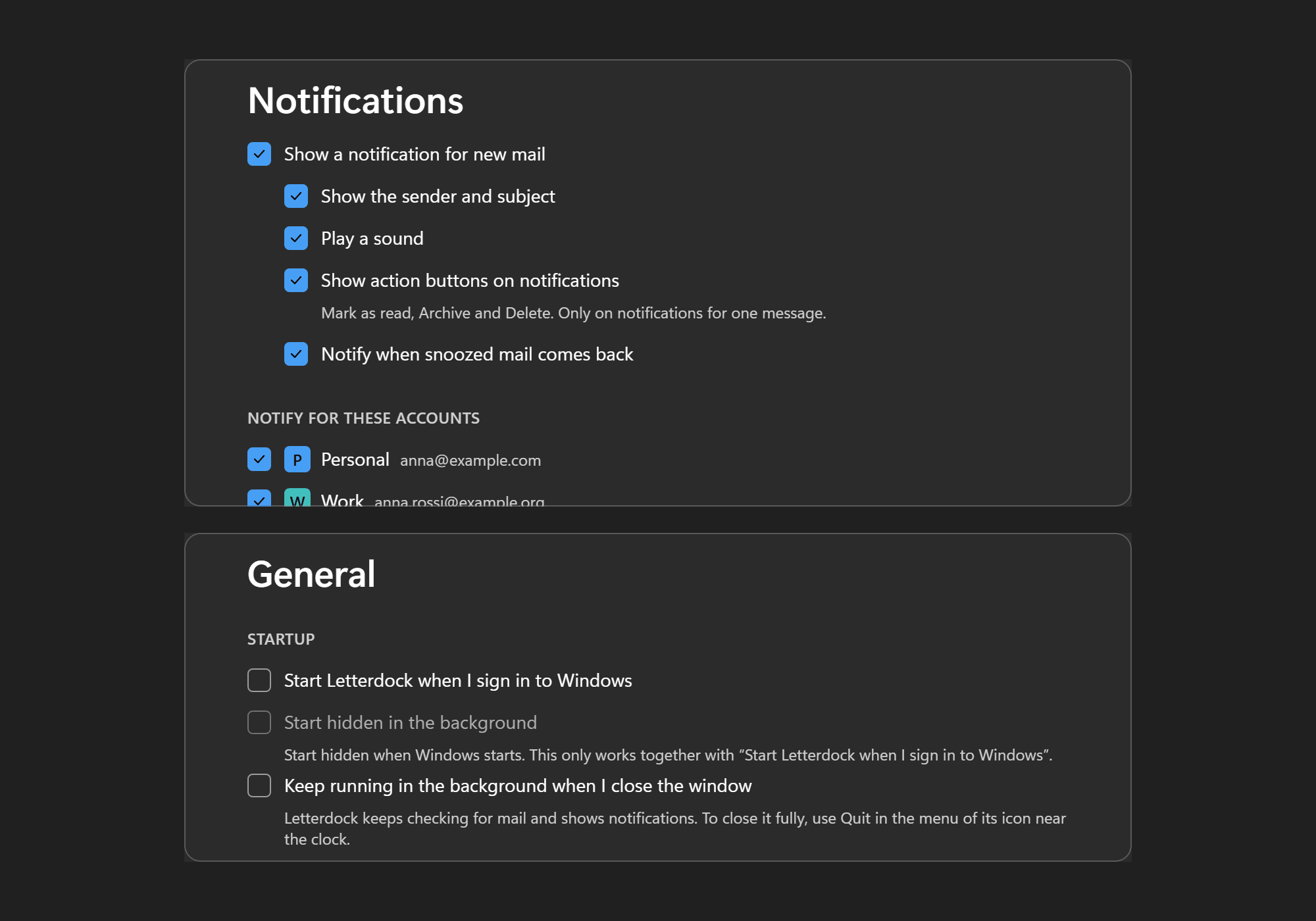
Notifications and trayWindows notifications with Mark as read, Archive and Delete buttons.
Get a Windows notification for new mail. Mark it as read, archive it or delete it right from the notification. Delete moves the message to Trash. It is hidden when you turn off “Show the sender and subject”. Close the window and Letterdock keeps checking from the tray.
Works with your email
Letterdock uses a standard way to talk to mail services called IMAP. Almost every email provider supports it.
Gmail
Works nowGmail needs an app password, not your normal password. It takes about two minutes.
Make a Gmail app password in 3 steps
- Turn on 2-Step Verification in your Google account.
- Open myaccount.google.com/apppasswords and make a new one named Letterdock.
- Copy the 16 letters and paste them into Letterdock instead of your password.
Outlook, Hotmail, Live
Coming soonSign in with Microsoft is on the way. Microsoft does not allow normal passwords for these accounts, so they cannot be added yet.
Yahoo
Works nowCreate an app password in your Yahoo account security page, then use it in Letterdock.
iCloud
Works nowCreate an app-specific password in your Apple Account at account.apple.com, then use it in Letterdock.
Any other email
Works nowWork, school, or your own domain: type your address and Letterdock tries to find the server details for you. If it cannot, you can enter them yourself. Your provider can tell you what they are.
How to install
It takes about a minute. You do not need admin rights.
-
Download. Click Download for Windows. The file is about 100 MB.
Download for Windows - Open the file. Double-click
Letterdock-Setup.exein your Downloads folder. - If Windows shows a blue warning, see the box below.
- Add your first account. Letterdock opens and asks for your email address.
Windows may say ‘Windows protected your PC’
This is normal. Letterdock is a small free project and the installer is not signed with a paid certificate yet. Windows shows this for all new apps like this. To continue: click More info, then click Run anyway.
If Windows blocks it completely (Smart App Control)
Some Windows 11 PCs have Smart App Control turned on. It can block apps that are not signed, and it has no ‘Run anyway’ button. You can turn it off in Windows Security, under App and browser control, then Smart App Control settings. Note: after you turn it off, Windows will not let you turn it back on without resetting the PC. If you do not want that, you can build Letterdock from source (see GitHub).
Want to check the file first? Every release is built on GitHub from the public code. See the releases page and the build page.
What Letterdock connects to
Letterdock talks to
- Your email provider’s servers, to get and send your mail (for example Gmail or Yahoo).
- GitHub, to check if there is a newer version of Letterdock. No personal data is sent.
- Websites that supply pictures in an email, but only after you allow images for that message or sender. Known tracking pictures stay blocked, and Letterdock tells you when a message had them.
- The sender of a mailing list, only when you click Unsubscribe. Depending on the message, Letterdock sends a short request, sends an email from your account, or opens the sender’s page in your browser after asking you.
- When you add an account: the website of your email domain, and Thunderbird’s public list of mail server settings, only to find the right settings. Your password is not sent there.
Letterdock does not
- Send your mail, contacts or passwords to us. We have no servers.
- Track you. There is no telemetry and no analytics.
- Show ads.
- Unsubscribe for you. It happens only when you click.
Your mail, accounts and settings are stored on your PC in %APPDATA%\Letterdock. Passwords are kept in Windows’ secure storage. Read the code.
This website has no cookies, no trackers and loads nothing from other sites.
Questions
Is it really free?
Yes. There are no paid plans and no limits on accounts. It is open source under the MIT license.
Does it work on Mac, Linux or phones?
Not right now. Letterdock is for Windows 10 and 11 (64-bit) only.
Is there a Gmail app for Windows?
Letterdock works with Gmail. Use a Gmail app password, not your normal password (see the 3 steps). You can put your Gmail next to other accounts in one inbox.
Is Letterdock an alternative to Outlook or Thunderbird?
It does the same basic job: read and send mail from many accounts on a Windows PC. Letterdock is newer. Outlook and Hotmail accounts cannot be added yet (Sign in with Microsoft is coming). Try it and see if it fits you.
Can I use more than one email account?
Yes. There is no limit. All accounts can share one inbox.
Is it safe? Why does Windows warn me?
The installer is not signed with a paid certificate yet, so Windows is careful. The code is public and anyone can check it. See How to install.
Where is my mail stored?
On your PC only. Your mail also stays on your provider’s server, as always. Removing an account in Letterdock does not delete mail on the server.
Can Letterdock open .eml files? And .msg?
Yes for .eml. Double-click a saved message, use Open with, drag it onto Letterdock, or press Ctrl+O. Letterdock shows up in Windows Default apps for .eml, but it never makes itself the default. .msg files (from Outlook) are not supported.
Does Letterdock block email trackers?
Pictures are blocked until you allow them. When you allow them, Letterdock still keeps known tracking pictures blocked and tells you when a message had some. It cannot find every tracker, so keep pictures off for senders you do not know.
Why does Gmail need an app password?
Google does not allow normal passwords in desktop apps. An app password is a separate 16-letter code just for Letterdock. You can delete it any time in your Google account.
Can I use my Outlook or Hotmail account?
‘Sign in with Microsoft’ is coming. We will announce it on GitHub releases.
I found a bug or I want a feature. What do I do?
Open an issue on GitHub. Please do not include passwords or private email text.